Web Application Overview
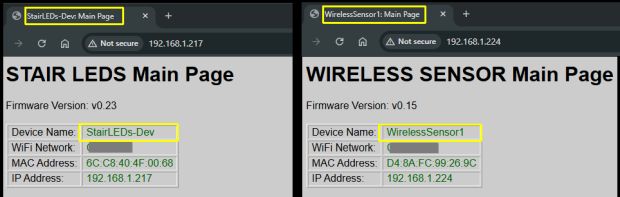
Each controller (primary and any wireless sensors) has its own web application and settings. While the primary controller can be controlled via MQTT, API, or via Home Assitant, the web application is the only interface that provides access to every available setting and option and is the only place where hardware settings can be specified.
🌐 Hosted Locally (No Cloud Required)
The entire web interface is served directly from the ESP32’s memory. It’s a remarkable feat of engineering when you consider that a chip the size of a postage stamp is doing the work of a web server on top of all its other processing. Just remember that it’s not a supercomputer—if you mash the “Refresh” button like you’re trying to win a radio contest, the ESP32 might get a little overwhelmed and take a brief, unscheduled nap.
As covered in Concepts, each controller uses and ESP32 controllers. While the system automatically handles most communication behind the scenes, there are specific system commands where you must know which controller you are currently accessing.
Identifying the “Active” Controller
Because commands can vary by controller, there are several visual indicators to help you identify which interface is currently active in your browser:
- Information Block: At the top of every page, the info block lists the specific Device Name and IP Address assigned during onboarding (or the static IP if you assigned one).
- Version Numbers: Each controller may have different firmware version numbers displayed in the header.
- Browser Tabs: The tab in your browser will automatically update to show the device name of the active controller.
Accessing the Interface
The application is fully responsive and accessible via any modern web browser on the same network as the LED system.
💡 Hint: For the best experience on a smartphone, rotate your device to landscape mode.
To log in, enter the IP address of your controller (e.g., 192.168.1.205) into your browser’s address bar.
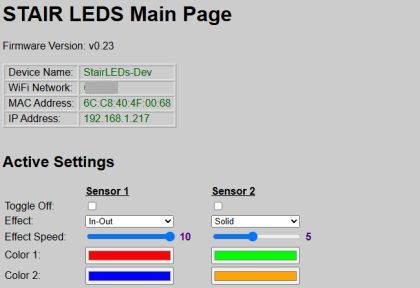
The main page will look slightly different different depending on whether you are accessing a primary or wireless sensor controller. The actual settings and options will be covered in upcoming sections.
General Navigation
The web application manages the “handoff” between controllers automatically. For the best experience, use the Back, Return, or Cancel buttons provided within the web app interface itself.
Avoid using your browser’s forward/back buttons, as this may load a cached version of the page that doesn’t reflect the true current state of the lamp.
