HTTP API Command List

The API allows for “headless” control of the system via simple HTTP requests. It’s essentially a remote control that lives in your browser’s address bar or your favorite automation script. Unlike MQTT, the API does not require third-party intermediaries (like a broker) or complex configuration. Commands are issued as standard URLs:
http://[your-controller-ip]/api?...
💡 IP Routing
For most commands, you can use either the Primary or Display controller’s IP address; the firmware handles internal routing automatically. Only the PING command must be sent to a specific controller’s IP to verify that specific unit.
Command Chaining
Some commands can be combined into a single HTTP call by concatenating them with an ampersand (&).
Example: http://[primary-ip-address]/api?ledbrightness=128&ledcolor=ff0000
Other commands must be sent as the only command in the URL.
SET Commands
These commands are used to modify the active state of the system. Commands marked NO in the “Multi” column must be sent as standalone requests and cannot be combined with other commands.
| Command | Parameter(s) | Returns | Multi | Example / Notes |
|---|---|---|---|---|
alarmactive | alarmnum&active=n | OK | NO | /api?alarmactive=2&active=1Sets active state of specified alarm. |
alarmtrack | number (1-20) | OK | Yes | /api?alarmtrack=13Sets the active track for alarm sound. |
alarmupdate | snooze or stop | OK | Yes | /api?alarmupdate=snoozeSnoozes/stops alarm (Ignored if idle). |
alarmvolume | number (0-30) | OK | Yes | /api?alarmvolume=15Sets alarm volume (or max for Gentle Wake). |
snoozetime | number (0-60) | OK | Yes | /api?snoozetime=10Sets snooze time in minutes. |
playalarm | length (0-60) | OK | Yes | /api?playalarm=15Plays current alarm track for X seconds. |
setalarm | See notes below | OK | NO | Must be the only command sent. |
bulbbrightness | number (0-255) | OK | Yes | /api?bulbbrightness=128Sets brightness; toggles bulb ON. |
bulbcolor | RGB or Hex | OK | Yes | /api?bulbcolor=00ff00Sets color and mode to [rgb]; toggles ON. |
bulbstate | OFF / ON (0/1) | OK | Yes | /api?bulbstate=ONSets bulb power state. |
ledbrightness | number (0-255) | OK | Yes | /api?ledbrightness=128Sets LED brightness; toggles strip ON. |
ledcolor | RGB or Hex | OK | Yes | /api?ledcolor=ff00ffSets LED color (omit ‘#’); toggles ON. |
ledstate | OFF / ON (0/1) | OK | Yes | /api?ledstate=ONSets LED strip power state. |
clockcolor | RGB or Hex | OK | Yes | /api?clockcolor=ffffffSets color of the clock display (omit ‘#’). |
dispbrightness | 0-255, up, down | OK | Yes | /api?dispbrightness=upAdjusts brightness. Auto-dim must be OFF. |
autodim | OFF / ON (0/1) | OK | Yes | /api?autodim=OFFSets the display’s auto-dimming state. |
settemperature | number | OK | Yes | /api?settemperature=72Source must be MQTT/API. Raw value. |
settime | See notes below | OK | NO | Applicable only if time source is Manual. |
touch1func | number (0-8) | OK | Yes | /api?touch1func=1Sets Sensor 1 primary function (0-8). |
touch1funca | number (0-2) | OK | Yes | /api?touch1funca=2Sets Sensor 1 alarm function (0-2). |
touch2func | number (0-8) | OK | Yes | /api?touch2func=1Sets Sensor 2 primary function. |
touch2funca | number (0-2) | OK | Yes | /api?touch2funca=2Sets Sensor 2 alarm function. |
bulbrestart | 1 | OK | NO | /api?bulbrestart=1Restarts the RGBW Light bulb. |
displayrestart | 1 | OK | NO | /api?displayrestart=1Restarts the display controller. |
primaryrestart | 1 | OK | NO | /api?primaryrestart=1Restarts the primary controller. |
restartall | 1 | OK | NO | /api?restartall=1Restarts all three controllers. |
dispsaveconfig | 1 | OK | NO | CAUTION: Saves active as default and reboots. |
primsaveconfig | 1 | OK | NO | CAUTION: Saves active as default and reboots. |
Detailed SET Parameter Notes
Setting an Alarm
Requires a specific set of parameters: /api?setalarm=1&alarmnum=3&date=2026-04-01&time=14:30:00&repeat=7
- setalarm:
0(Inactive) or1(Active). - alarmnum: Slot
1-5. - date:
YYYY-MM-DD. - time:
hh:mm:ss(Seconds required, 24-hour format). - repeat:
0-9(0=None, 1-7=Days, 8=Weekdays, 9=Weekends).
Setting the Time
Requires: /api?settime=1&mon=4&day=15&yr=2026&hr=14&min=30&sec=0
- Source: Time source must be set to Manual for this to persist. Otherwise the next sync will overwrite the set time.
- Requirements: All parameters (Month, Day, Year, Hour, Minute, Second) are required. Hours must be specified in 24-hour (military) format.
GET Commands
These commands retrieve data and do not modify settings. They must be sent individually.
| Command | Parameter(s) | Returns | Example / Notes |
|---|---|---|---|
ping | 1 | OK | /api?ping=1Send to the specific controller IP. |
primaryipaddr | 1 | IP Address | Returns IP of primary controller. |
displayipaddr | 1 | IP Address | Returns IP of display controller. |
bulbipaddr | 1 | IP Address | Returns IP of RGBW light bulb. |
primarymac | 1 | MAC Address | Returns MAC of primary controller. |
displaymac | 1 | MAC Address | Returns MAC of display controller. |
DIRECT Commands
These are shortcut commands typically sent to a specific controller. Note the omission of /api in the URL.
Controller-Specific Direct Calls
| Command | Parameter(s) | Returns | Notes |
|---|---|---|---|
/restart | none | Web Page | Reboots the targeted controller. |
/restartall | none | Web Page | Reboots all three units (Primary IP only). |
/otaupdate | none | Web Page | Places targeted unit in OTA Update mode. |
RGBW Light Bulb Direct Commands
The bulb uses the ESPHome API base: http://[bulb-ip]/light/[bulbname]/[command]
| Command | Parameter(s) | Returns | Notes |
|---|---|---|---|
| empty | none | JSON | Returns a JSON payload of current state. |
/turn_on | optional | OK | Toggles bulb on with last or new settings. |
/turn_off | none | OK | Turns the light bulb off. |
💡 JSON Example: Current Bulb State
{
  "id": "light-bedside_lamp_bulb",
  "state": "ON",
  "color_mode": "color_temp",
  "brightness": 198,
  "color_temp": 287
}
🔍 JSON Payload May Vary
The contents of the bulb’s state payload will vary based on whether the bulb is in color_temp or rgb color mode.
External Bulb Support
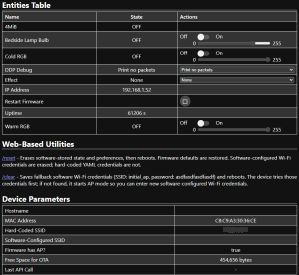
While not utilitized or linked to from the app, the bulb does have its own web interface that can be accessed by simply entering the bulb’s IP address in a browser.
❗ Support Disclaimer
The Kauf bulb utilizes its own factory ESPHome firmware. This project makes use of the provided API but does not maintain the bulb’s internal firmware. For assistance with the bulb itself, refer to the Kauf Common Repository or the Kauf RGBWW Bulb Repository.