Setting Up Alarm Sounds

Alarm audio is handled by a DFPlayer Mini module equipped with a microSD card. Because the DFPlayer has very specific requirements for file organization, following these steps exactly is critical for a functional alarm system.
💡 Build Reference
For full details on the hardware installation and SD card compatibility (8-32GB supported), refer to the Build Guide.
Supported Sound Files
The system supports any standard .mp3 file. While you can use full-length songs, the system will “loop” the audio to create a continuous alarm.
🎵 Choose Your Soundtrack Wisely
A word of advice: choose your alarm sounds carefully. There is no faster way to grow to loathe your favorite song than by making it the reason you have to stop dreaming and go to work. If you’re unsure, “Gentle Waves” is a safe bet; “Industrial Jackhammer” is only for the bravest souls.
- Recommended Length: 5–30 seconds.
- Selection Limit: Only the first 20 tracks on the card are selectable as alarm sounds via the web app.
- Extended Library: You can store up to 255 tracks (0001.mp3 to 0255.mp3). While tracks beyond 20 cannot be used for alarms, they can be triggered remotely via MQTT or the HTTP API.
Naming and Transferring Files
The microSD card must be formatted as FAT32. Files must be named using a four-digit sequential format: 0001.mp3, 0002.mp3, 0003.mp3, etc.
⚠️ Important: Physical Copy Order
The DFPlayer addresses files based on their physical location on the disk, not necessarily their filename. To ensure0001.mp3is actually seen as Index 1, you should copy the files to the SD card one at a time, in order. A bulk “drag and drop” of 20 files may result in the player seeing them in a random order.
Managing the Sound Library
Since numeric filenames are hard to remember, the web application allows you to map these indices to meaningful names. Navigate to the Display settings from the primary menu to find the Sound Library.

Mapping Track Names
When you first open the library, the fields will be empty. You must define the relationship between the physical file and the name shown in the alarm menus.
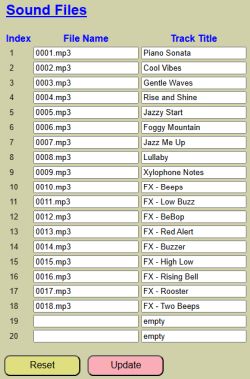
- File Name: Enter the sequential filename (e.g.,
0001.mp3). This must match the physical index of the file on the SD card. - Track Title: Assign a descriptive name (e.g., “Forest Birds” or “FX_Heavy_Siren”). These titles will appear in the alarm configuration dropdowns.
- Unused Tracks: Any indices without an assigned file must have the Track Title set to
empty. This is a system requirement—do not leave the field blank.
Controls
- RESET: Reloads the last saved library settings from the configuration file.
- UPDATE: Commits your changes to the saved sound library configuration.
💡 Note: No Reboot Required
Unlike main system settings, sound library updates are applied immediately. Be sure to click UPDATE before navigating away, or your changes will be lost.