Clock and Time Settings

The clock and time settings manage both the visual appearance of the display and the logic used to synchronize the date and time. While these sections appear on the same page, the Appearance and Sync settings operate independently.
Clock Size and Appearance
These settings control the visual style of the time on the CYD display.
💡 Note: Boot Persistence Only
Unlike many other system settings, the clock appearance has no ACTIVE “on-the-fly” controls. Any changes made here require a Save & Reboot to be applied to the display hardware.
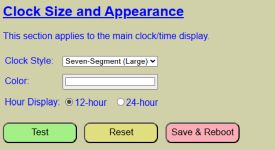
- Clock Style: Choose from four currently available styles for the time display.
- Clock Color: Select the display color. This uses the same color picker found in the LED Strip and Bulb settings, supporting the eyedropper tool and manual RGB/HSL/Hex entry.
- Hour Display: Select between 12-hour (AM/PM) or 24-hour (Military) formats.
Controls
- TEST / STOP: Toggles the display style and color on the hardware for previewing before saving.
- RESET: Reverts values to the last saved defaults.
- SAVE & REBOOT: Commits the style changes and restarts the controller to apply them.
Setting the Time and Sync Options
By default, if no sync source is available at boot, the system starts at 12:00 AM, January 1, 2026.
💡 Technical Note: RTC Drift
The ESP32 uses an internal Real-Time Clock (RTC) based on elapsed milliseconds. Because of high processing demands, this internal clock is subject to “drift” (a few seconds per day). For best accuracy, an external sync source is strongly recommended.
Accuracy Ranking
For best results, choose a source based on this hierarchy of reliability: NTP > MQTT > API > Manual
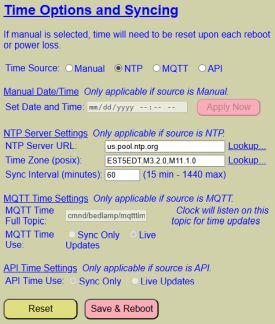
1. Manual Date and Time
Select this to manually override the clock.
- Format: Entries must follow
mm/dd/yyyy hh:mm am/pm(e.g.,04/06/2026 11:27 am).- alternatively, you can click the calendar icon in the time field text box and use a date/time picker
- Apply Now: Sets the clock immediately.
- Persistence: Manual time is lost upon reboot or power loss.
2. Network Time Protocol (NTP)
The recommended method for most users. It sets the time automatically at boot and maintains accuracy via periodic resyncs.
-
NTP Server URL: The address of your time server (e.g.,
us.pool.ntp.org). Use the Lookup… link to find servers near your location. This option does require an Internet connection. However, you can use a local NTP server if one is available on your local network. -
Time Zone (POSIX): Entering your time zone using a POSIX string like
EST5EDT,M3.2.0,M11.1.0feels less like setting a clock and more like writing an incantation. It’s not pretty, but it’s the secret language that tells your lamp exactly when to jump forward or fall back so you aren’t late for work. If you get it wrong, you’ll be living in the future (or the past), which is great for sci-fi fans but terrible for breakfast schedules. Use the Lookup… link to find the correct string for your region (this handles Daylight Savings automatically if observed in your time zone). -
Sync Interval: Frequency of resyncs (15 to 1,440 minutes).
- Normally a resync every few hours (or even once or twice per day) is sufficient to keep the clock accurate. NTP servers generally block any requests made more frequently than once per 15 minutes.
3. MQTT Time Source
Requires an active MQTT broker. The system listens to a specific topic for time updates.
- MQTT Time Topic: The specific topic where your external system (like Home Assistant) publishes the time.
- This topic is independent of the general topics setup for other MQTT operations. See the MQTT topics for more information.
- Format: Time must be published by the source as
yyyy-mm-dd hh:mm:ssin 24-hour format. - Sync Only: Sets the time at boot; uses the internal RTC thereafter.
- Live Updates: Ignores the internal RTC and only updates when a new MQTT message is received (requires per-minute publishing by the source).
4. API Time Source
Uses the system’s HTTP API to receive time data from an external script or controller.
- Sync Only: Sets time upon receiving a valid API command, then uses internal RTC.
- Live Updates: The clock remains static until a new API command is received.
Maintenance
- RESET: Restores all sync settings to the last saved defaults.
- SAVE AND REBOOT: Commits the selected Time Source and its parameters to the configuration file and restarts the system to initiate the first sync.