Installing Firmware Updates

From time to time, new versions of the firmware are released to provide bug fixes, new features, or support for updated hardware. This section covers how to obtain the latest files and apply them safely to your system.
Update Notifications
Since the system is designed for local privacy and operates without a constant internet “phone home” connection, there is no automatic push notification for updates within the web app.
To stay informed, it is recommended to “Watch” the official repository:
- Log into your GitHub account.
- Navigate to the Ultimate Bedside Lamp repository.
- Set a Watch notification for “Releases.”
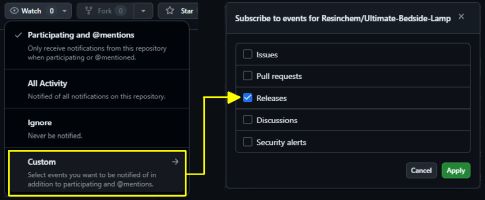
Assure you’ve enable notifcations in your Github settings and you can receive an email or a push notification in Github whenever a new release is published.
Obtaining the Latest Firmware
The most recent stable files are always located in the Releases section of the GitHub repository.
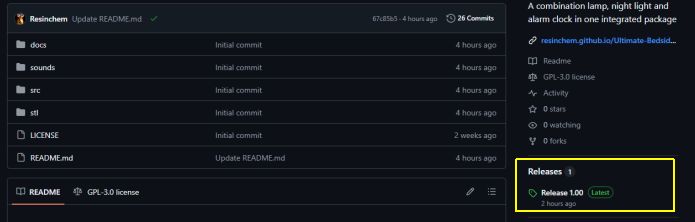
Release Notes
Each release includes notes detailing exactly what changed. Some updates may target only one controller, while others update the entire system. All releases will contain both controller’s firmware, but the release notes will indicate which files have been updated and which remain the same.
❗ Pay Attention to Breaking Changes
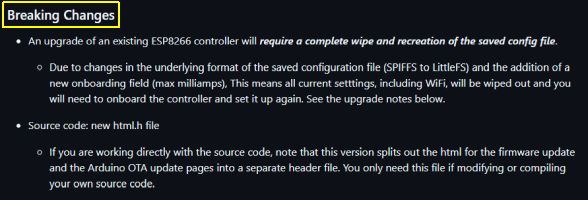
Always check the release notes for a BREAKING CHANGES section. These may require you to perform extra configuration steps or hardware adjustments during the upgrade process.
Example of a Breaking Changes section in release notes:
Which file do I need?
If you are running the standard, unmodified firmware, you only need the .bin files under the release’s assets:
- Primary Controller:
Primary_Ctrl_vX.XX_Update.bin - Display Controller:
Display_Ctrl_vX.XX_Update.bin
(X.XX represents the version number)
Releases also contain _Full versions as well, but these are meant for initial or new installs only. If you install a _Full version over an existing installation, all your settings (including WiFi credentials) will be overwritten and you will have to onboard and configure your system again.
You do not need the Source code files unless you are looking to modify the firmware.
Installing the Update
⚠️ WARNING: Files are NOT Interchangeable
The Primary and Display controllers use different pin mappings and logic. Double-check your files! Sending the Display firmware to the Primary controller (or vice versa) is a quick way to turn your smart lamp into a very confused (and dark) paperweight. You will likely need to reflash via a USB cable to recover.
- Navigate to the Controller Commands section of the controller you wish to upgrade.
- Click the Firmware Upgrade button.
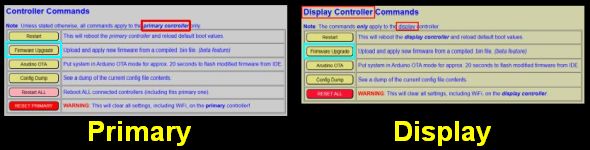
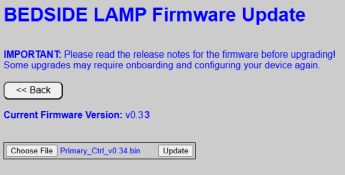
- On the upgrade page, verify the Background Color (Gray for Primary, Yellow for Display) to ensure you are on the correct display’s page. You can also check the labels and current version number as extra confirmation.
-
Click Choose File and select the
.binfile you downloaded. -
Click UPDATE.
⚠️ Caution
Once the update starts, resist the urge to tinker. It only takes a minute, and interrupting a flash is the digital equivalent of waking a sleepwalker—it rarely ends well.
A progress bar will appear. Once the upload reaches 100%, the controller will automatically reboot.
Verifying the Update
Once the system reboots, navigate to the top of the controller’s main page. The version string in the header should now reflect the updated version number.
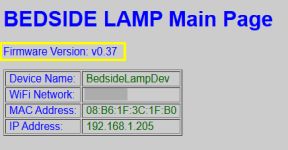
If the old version number is still displayed, the update failed and the system successfully “rolled back” to the previous firmware. You can attempt the flash again or consult the Troubleshooting guide.
Using Third-Party Utilities
While the internal web update is the recommended path, utilities like ESPConnect can be used as a fallback.
⚠️ Critical: Partition Layouts
Due to the complexity of the firmware, this project uses non-standard partition sizes.
- DO NOT select “Erase Flash” before flashing; this will wipe your configuration files and Wi-Fi credentials.
- Your utility must support custom partition offsets. Failure to respect the partition layout will result in a boot failure. See Advanced topics for information on required partitions.
Updating Modified Firmware
If you have customized the C++, HTML, or CSS, applying an official .bin update will overwrite all your changes. You must instead pull the updated source code from GitHub and re-apply your modifications manually before compiling.